intelligent Calculator
“intelli-Calc”
Detail
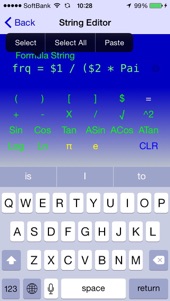
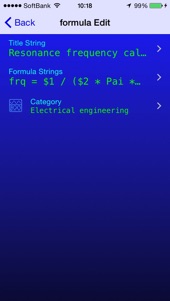
Editing Function
式の入力と編集
変数一覧表示の時、”Edit”を押すと”formula Edit”画面に移行します。
画面右の”>”を押すと内容を編集する画面に移行します。
1)Title String :タイトル用文字列 ⇨ String Editor
2)Formula String :数式文字列 ⇨ String Editor
3)Category :カテゴリアイコン ⇨ Select Category
When the variable list, and then migrate to the "Edit" the press and "formula Edit" screen.
You will edit the contents to be displayed on the Formula list.
1) Title String: string of Title ⇨ String Editor
2) Formula String: string of Formula ⇨ String Editor
3) Category: category icon ⇨ Select Category
数式で用いる文字列について
1)定数は”$”を付けます。 ($2 は定数の2を表す)
2)”√”は”SQRT”文字に置き換わります。
3)”π”は”Pai”に置き換わります。
4)変数の代わりに数値を入力する事も出来ますが、
式の中では変数としてユニークな名称が自動的に与えられます。
ANS = 3 + 2 ⇨ ANS = E1 + E2
5)式の中で同一な変数名も単一的に管理します。(V1.20より)
6)計算式一覧画面で”New”を押して新たに生成する場合
自動的に以下の文字列が与えられます。
Title :タイムスタンプ
Formula String :ANS =
Category :Not Have Information
For string to use the Formula
1) constant it will put a "$". ($2 is static number 2)
2) "√" it will be replaced by the "SQRT" character.
3) "π" it will be replaced by the "Pai".
4) You can also enter a number in place of the variable,
A unique name is automatically given as a variable in the formula.
ANS = 3 + 2 ⇨ ANS = E1 + E2
5) Same variable name in an expression also single managed. (From V1.20)
6)"New" by pressing the case to be newly generated in the Formula list screen
Automatically following strings is given.
Title: timestamp
Formula String: ANS =
Category: Not Have Information
計算式の制約
1)計算式中では同一変数名が2箇所でも使用できます(V1.20より)
2)計算式文字列には必ず”=”が必要です。
3)計算式を構成する変数、演算子は最低限の構成が必要です。
“ ANS = X + Y” が最低限の構成です。
4)計算順序は ( ) を使用する事で計算順序を明確にする事が出来ます。
計算は括弧内を優先します。
Formula restrictions
1) You can use the same variable name is two places in formula. (from V1.20)
2) You must have always "=" the Formula string.
3) variables that make up the Formula strings, the operator requires minimal configuration.
"ANS = X + Y" is the minimum configuration.
4) calculation order is ( ) and it is possible to clarify the calculation order in that you use.
Calculation gives priority to in parentheses.
添字(接頭辞と単位)の設定
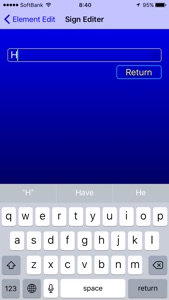
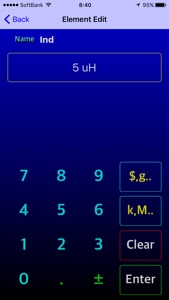
Element Editor画面で”$,g..”をタッチすると”Sign Editor”画面に切り替わります
任意の文字列を単位として設定でき、計算には影響有りません。
またキロ、メガ、センチ等の変数の接頭辞を設定することが出来ます。
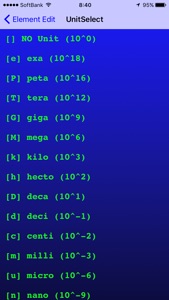
Element Editor画面で”k,M..”をタッチするとUnit Select画面から
接頭辞を選択することが出来ます。
接頭辞は単位相当の乗数が計算時に加えられます。
(u micro 10^-6 なら 入力値に10^-6 を掛けた数として計算します)
ただし、この接頭辞は注意が必要です。
例えば、
面積の計算のつもりで Ans[cm] = 10cm X 10cm とc(centi 10^-2)を入力して
面積を算出つもりが答えは1[cm]になります。
内部では (10x10^-2) x (10x10^-2) と解釈され1x1と等しく
答えは1なので単位変換されて1✕10^-2から表示は1cmと表示します。
同一単位系の計算で”cm”の表示が欲しい場合は単位文字の所に”cm”と入力し
Unitには”No Unit”を入力することで希望する計算が出来ます。
Unit subscript
Touch "$, g .." on the Element Editor screen to switch to the "Sign Editor" screen
It can be set with arbitrary character string as a unit, there is no influence on calculation.
You can also set prefixes for variables such as kilometers, mega, centimeters and so on.
If you touch "k, M .." on the Element Editor screen, from the Unit Select screen
You can select a prefix.
The prefix is multiplied by the unit corresponding to the calculation.
(For u micro 10 ^ - 6, calculate it as the input value multiplied by 10 ^ -6)
However, this unit calculation is necessary to be careful.
For example,
Enter the Ans with the intention of the calculation of the area [cm] = 10cm X 10cm for c (centi 10 ^ -2)
Going to calculate the area of the answer will be 10 [cm].
In the internal equal to the 1x1 is interpreted as (10x10 ^ -2) x (10x10 ^ -2)
answer is displayed from 1X10 ^ -2 been converted 1 so the unit will display a 1cm.
If you want a display of "cm" in the calculation of the same unit system by typing "cm" in place of "Sign" and Unit can display you want by entering a "No Unit".
演算子について
現在のバージョンでは演算子の仕様はiPhone Objective-Cのmathライブラリの仕様に
準拠しています。(今後のアップデートで変更予定)
1)Sin,Cos,Tanの引数は”rad”(ラジアン:1周が2π)です。
関数電卓では角度(Degree)なので注意が必要です。
degree = rad ×180÷π
rad = degree ×π÷180
2) Logは底を10とし添字は真数を表します。
Log(3) = Log[10]3
3) Lnは底を e (= 2.718...) とする自然対数 (natural logarithm)を表します。
For operators
In the current version of the specification of the operator is in compliance with the specifications of the math library of iPhone Objective-C. (Change in a future update)
1) Sin, Cos, Tan's argument "rad" (radians: 1 laps 2π).
In the function calculator you must be careful because the angle (Degree).
degree = rad × 180 ÷ π
rad = degree × π ÷ 180
2) Log subscript the bottom and 10 represents the true number.
Log (3) = Log [10] 3
3) Ln represents the natural logarithm to the bottom and e (= 2.718 ...).
Formula Edit
String Editor
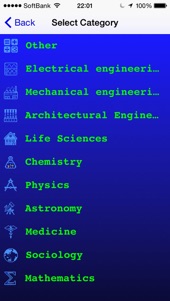
Select Category
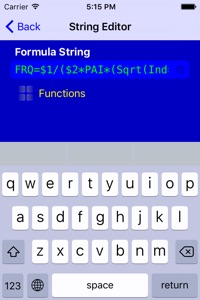
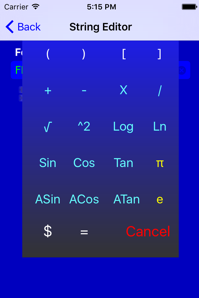
iPhone4sの画面には”Functions”ボタンを用意しました
このボタンを押すと演算子のPopupが表示されます
On the screen of the iPhone4s has prepared the "Functions" button
Popup will be displayed with the operator press this button
iPhone4s

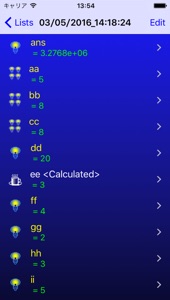
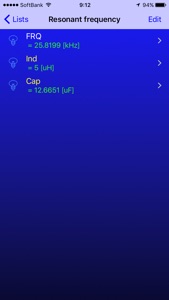
右の例では aa,bb,ccは副数箇所で使用されている変数名、4つの電球で表示しています。
aa, bb, cc variable name is being used by the sub several places
It has been displayed in the four light bulbs.
同じ変数名で複数箇所への使用
Use in a plurality of locations at the same variable name