GPS STRING





HOW TO USE

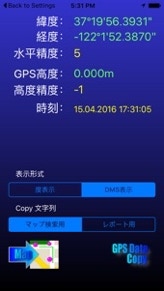
When launched, if the GPS function is enabled, it will measure and display your direction (home screen).
You can switch between [degrees] and [DMS].
Map function
↓
COPY Button
↓
Pressing the "COPY" button at the bottom of the screen will convert the direction information into a string and copy it to the pasteboard.
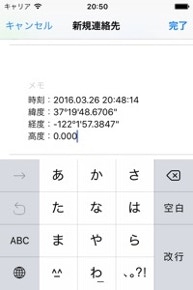
When using a map search, the string copied is the search code, and when using a report, the heading, altitude, and time strings are copied. At startup, it is used for map search.
I want to easily extract direction information from my iPhone's GPS function!
I want altitude information.
Is there a way to survey buildings using a map?
Is there an easy way to measure distance from a map?
I want something simple to use.

<<無料公開中>>










intelli-Calc
iPhone & iPad
Application
This app analyzes formulas and expressions when you input them,
and performs reverse calculations and fill-in-the-blank calculations.
Since it reverse-calculates elements from the answer,
there's no need to reverse-expand formulas!
From loan calculations and split-the-bill calculations to electricity calculations,
bring it on!
For example, you can reverse-calculate the original price and discount rate from the selling price.

intelli-Morse
iPhone Application
The compact iPhone now comes with the ability to learn Morse code.
You can even learn while commuting to work.
The microphone can also pick up Morse code sounds and demodulate them into text.
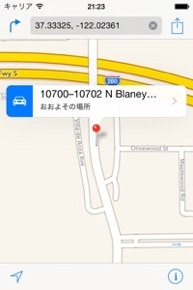
Example of a search by pasting the map code into the map search field
Press the "Map Function" button to go to the map screen.
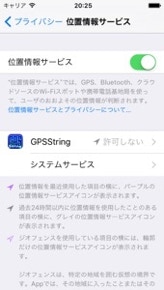
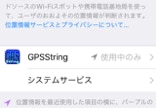
位置情報サービスを有効にする方法
Example of report string pasted into the memo field
The magnifying glass icon will take you to the location search screen.
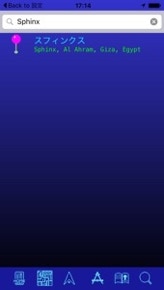
I searched for “Sphinx”
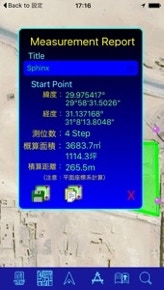
Pressing the compass icon at the bottom of the screen will display detailed information on the report screen.
If there are three or more points, the area will be measured, and if there are two, the total distance will be displayed.
You can edit the title on this screen.
The title will default to the date and time.
Pressing the floppy disk icon will save the data internally.
Pressing the icon next to the floppy disk will convert the detailed information to text and copy it to the pasteboard. You can later paste it into Notepad or email.
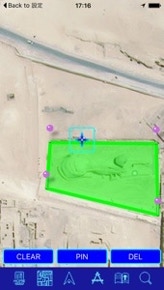
I calculated the area around "Sphinx"
You can select the type of map by clicking the map icon.
Satellite photos give you a very realistic view of the shape.


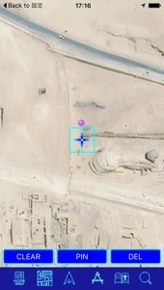
Scroll the map and position the central crosshair cursor over the location you want to point to.
Press the "PIN" button or the crosshair cursor to place a pin at that location.
Select three or more locations you want to enclose and press the "compass" icon. A line will automatically connect the last point you pointed to and the first point you pointed to, calculating the area of the enclosed area.
"CLEAR": Clears all displayed information.
"DEL": Deletes the last point added.
Accuracy tends to be 5% to 10% smaller.
Because it is a planar coordinate system, the larger the area, the greater the error. (These numbers are approximate.)
Return to the home screen (GPS display screen).

Displays buttons to switch between Map, Map + Satellite, and Satellite.

Turn your current location on the map on/off.
Turn it on to move the center of the map to your current location.
After calculating the area, a report will be displayed.
Magnifying Glass Switches to the location search screen.
You will be taken to a screen that displays a list of saved measurement information.

NOTE
When you turn on the current location display, it may occasionally become the origin of the direction when GPS is not yet measured. In this case, turn the current location display off and then on again to move to the correct location.

Saves the currently displayed measurement information.
Converts the displayed measurement information into a string and copies it to the pasteboard.
Positioning crosshair cursor
Always fixed in the center of the screen. Scroll the map to point to the desired location.
Can also be used for positioning, just like the PIN button.
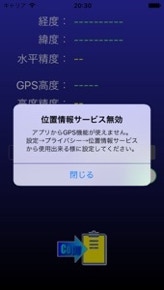
If location services are not enabled at startup, a pop-up will appear.

[Settings]
↓
[Privacy]
↓
In [Location Services],
GPSString is set to "Don't Allow."
Change it to "While in Use Only" or "Always Allowed."